
Facebook allows a page administrator to add, change, and remove various roles to manage aspects of your facebook page, so that each individual involved in your pages management through their own Facebook accounts. This allows for tracking of posts and messages entered through each role and ensures that each member of your team has the appropriate level of access.
To assign roles, the administrator must be logged into their facebook account and be accessing the specific page to which they will be assigning roles. Click on your account and click See All Profiles to view the pages you have access to.
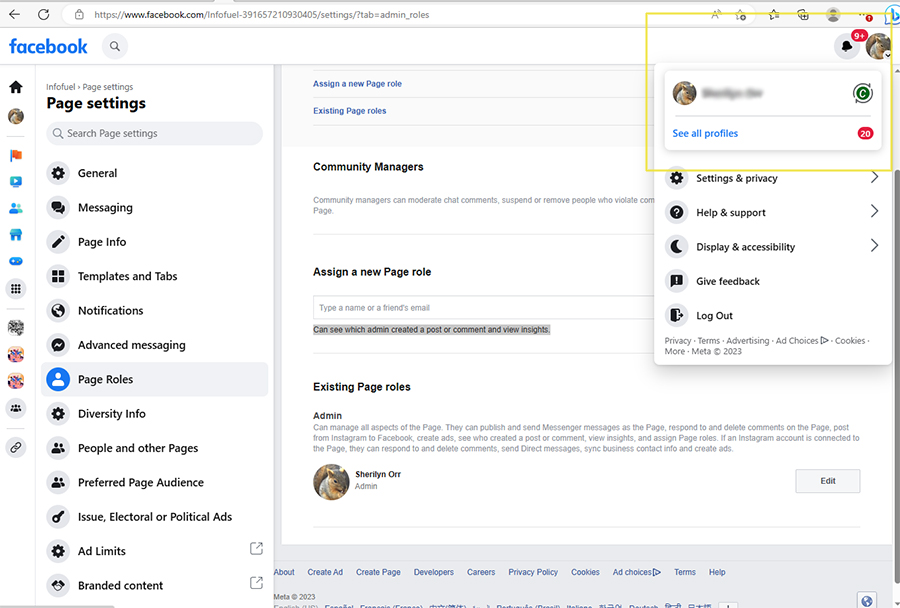
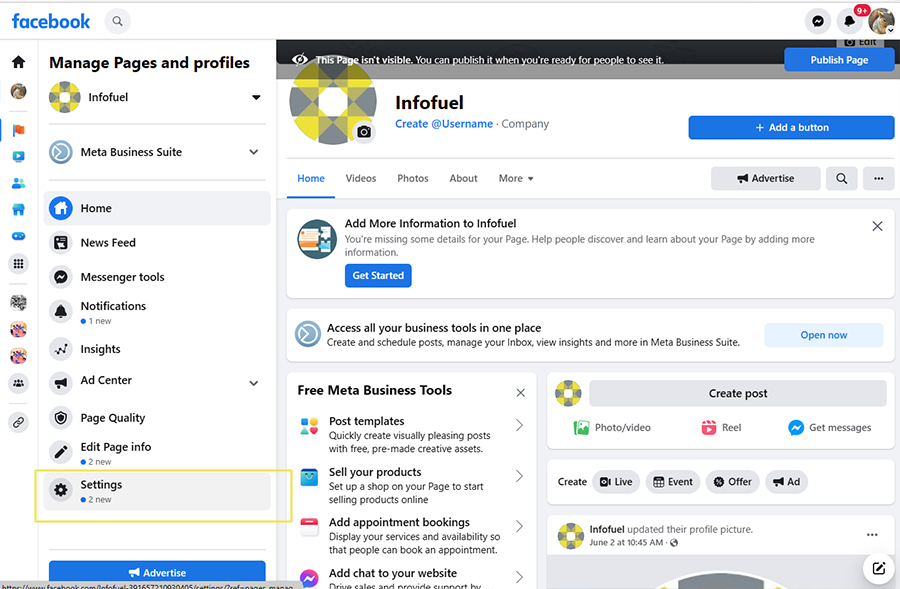
After selecting the page, access Page Settings. If you have multiple profiles you may need to switch to the appropriate profile to view settings for a specific page.
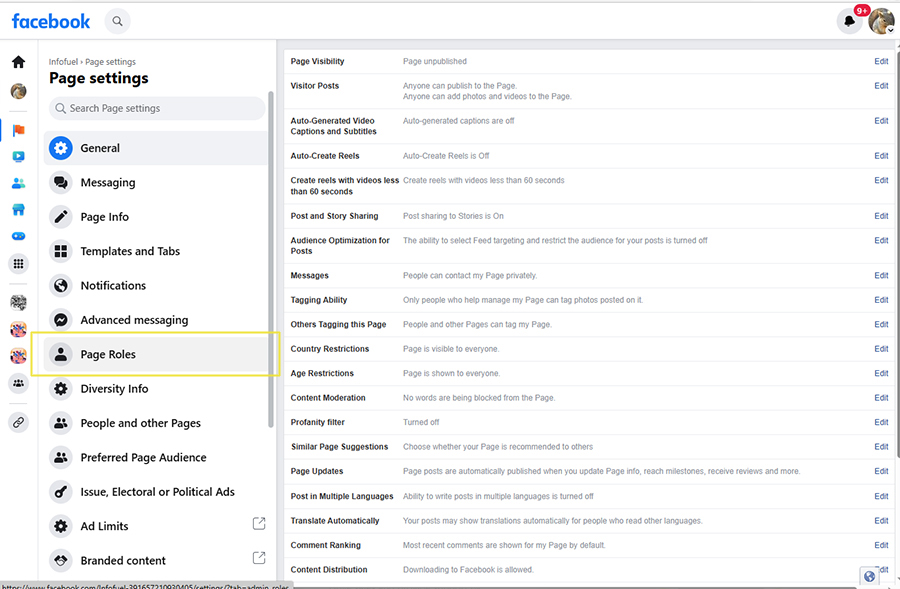
In the settings menu, select roles. This option is only available if you are a page admin role so if you don’t see this option, check in with your page administrator.
Assign Roles is located toward the center of this page. Type in the email address of the person you are adding to your page roles – their corresponding facebook account will display as a pulldown option as you are typing into the field. Make sure you select the correct person for the role.
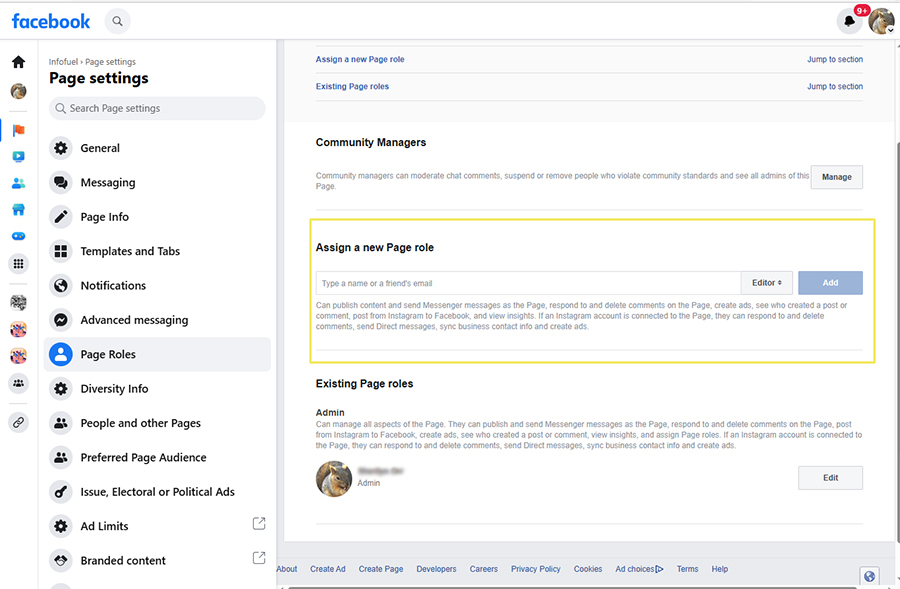
Make certain you assign the correct access level to the role you are creating; especially when you are providing admin access to your page. This access level can add or remove any role from your page. The Assigned Role is defaulted to editor, but you can select from the following access levels:
- Admins can manage all aspects of the Page. They can publish and send Messenger messages as the Page, respond to and delete comments on the Page, post from Instagram to Facebook, create ads, see who created a post or comment, view insights, and assign Page roles. If an Instagram account is connected to the Page, they can respond to and delete comments, send Direct messages, sync business contact info and create ads. If you’re adding a new admin to your Page, please keep in mind that they’ll have the same permission as you do to make changes to this Page.
- Editors can publish content and send Messenger messages as the Page, respond to and delete comments on the Page, create ads, see who created a post or comment, post from Instagram to Facebook, and view insights. If an Instagram account is connected to the Page, they can respond to and delete comments, send Direct messages, sync business contact info and create ads.
- Moderators can send Messenger messages as the Page, respond to and delete comments on the Page, create ads, see who created a post or comment, and view insights. If an Instagram account is connected to the Page, they can respond to Instagram comments, send Direct messages and create ads.
- Advertisors can create ads, see who created a post or comment, and view insights. If an Instagram account is connected to the Page, they can create ads.
- Analysts can see which admin created a post or comment and view insights.
